How to Create a Portal Page
Give participants one central place to find every sign up, document, and update related to your organization.
 Posted by Kate White
Date:07/27/2026
Posted by Kate White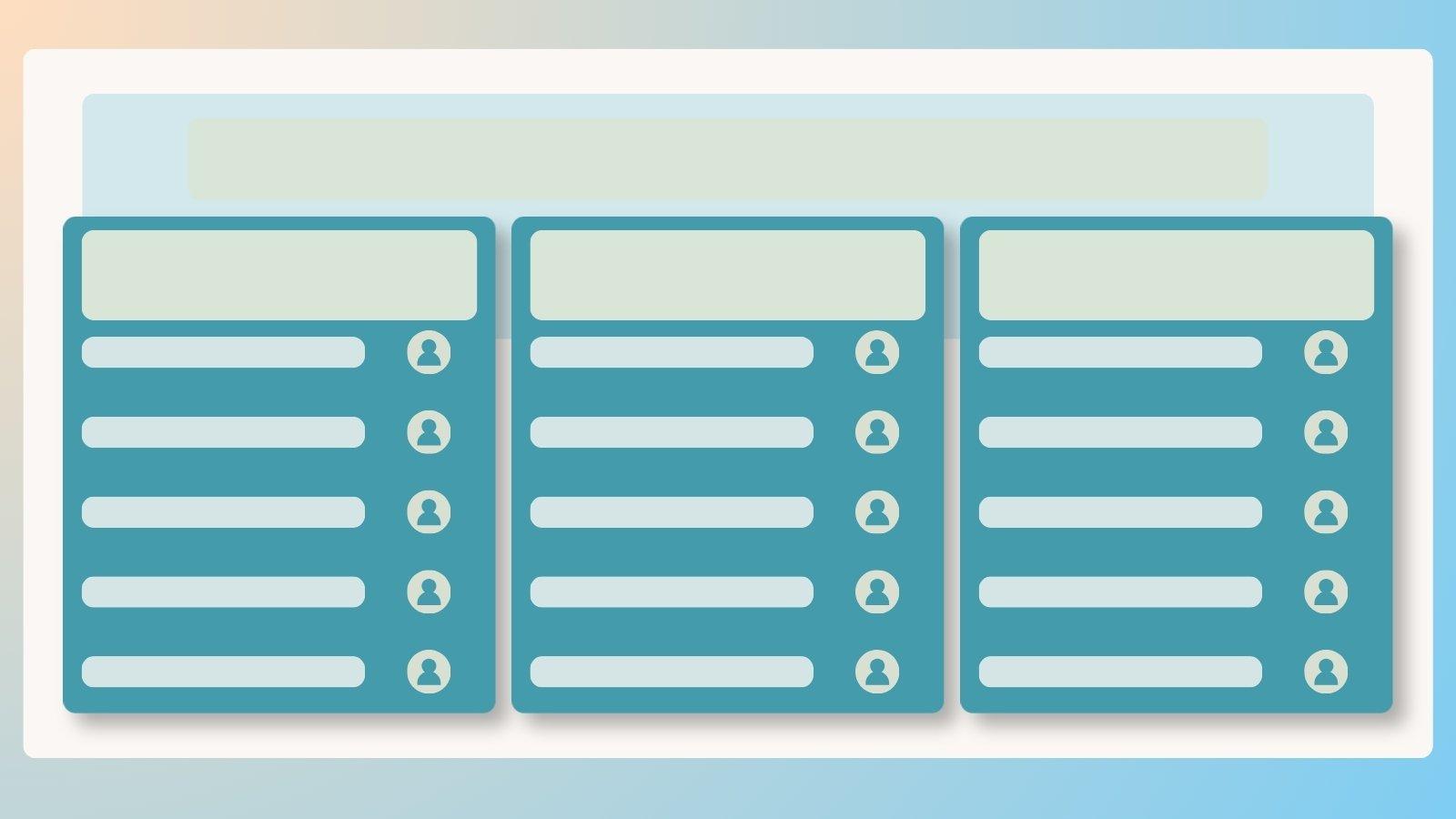
Quick Start — Jump to your section
How to Create a Portal Page Customize Your Portal Page Share Your Portal Page Embed Your Portal Page on Your WebsiteManaging more sign ups than a single link can reasonably cover? Enterprise plans include Portal Pages, a customizable home base that connects participants to a whole group of related sign ups, documents, and updates, all through one link. Unlimited portal pages are included, so there's no limit to how you organize things.
Nobody Sees It Until You're Ready
Creating your portal page doesn't mean it's public yet. You can fully polish the page before sharing the link with anyone.
Once your page is created, make it your own. Adjust the color scheme and upload a banner image to match your organization's branding.
From there, you can edit, remove, or duplicate individual sections, including:

Genius Tip
Use one portal page to display every upcoming event at once, or create a separate portal page for a single large event that includes several related sign ups. Both approaches work, choose whichever matches how your organization actually operates.
Share your portal page link the same way you'd share any sign up link, by email, text, social media, or your website.
You can also link directly to a portal page when inviting people to a sign up:
Want participants to access your portal page without ever leaving your site? Portal pages can be embedded directly into your website using the same JavaScript snippet approach used for individual sign ups.
Full Embedding Instructions
See the complete setup steps for embedding a portal page on your website.
Learn how to embed a portal pageIs creating a portal page an Enterprise-only feature?
Yes. Portal Pages are available on Enterprise plans.
How many portal pages can I create?
Enterprise plans include unlimited portal pages, so you can create as many as your organization needs.
Can participants subscribe to ongoing updates from a portal page?
Yes. Add a Subscribe to Group section so participants can opt in to email or text updates directly from the page.
Can I remove SignUpGenius branding from my portal page?
Yes. You can choose to remove branding when you first create the page.
Can I embed a portal page directly on my website?
Yes. Portal pages can be embedded using the same JavaScript snippet approach used for individual sign ups.
How to Share Your Sign Up and Maximize Participation
Get your sign up in front of the right people, whatever channel your group uses.
Read moreSignUpGenius is a truly fantastic website that has been incredibly useful in helping organize participants for an undergraduate project. It is simple and intuitive to use, and I would certainly recommend it for use in similar projects.
James Hall