How to Set Up Automatic Reminders and Sign Up Messaging
Good communication is what separates a smooth event from a stressful one. Here's how to put every messaging tool in your account to work.
 Posted by Ally Patterson
Date:03/24/2026
 Posted by Ally Patterson
Quick Start — Jump to your section
Automatic Reminders Text Messaging Schedule Emails in Advance Custom Reminder and Confirmation Templates Check Delivery Rate and View Sent MessagesGood communication is what separates a smooth event from a stressful one. SignUpGenius is built to handle more than just sign up sheets. The messaging tools built into your account let you reach participants quickly, keep everyone informed, and track whether your messages are actually landing.
If you've been sending everything manually or relying on generic reminder emails, these five features are worth a few minutes of your time.
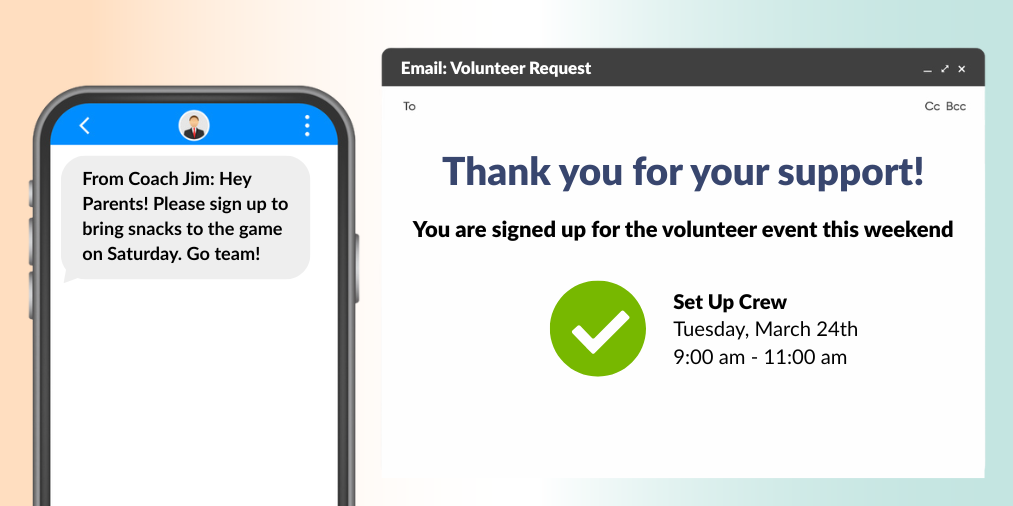
Every sign up sends a confirmation email the moment someone signs up and automatic reminder emails are easy to set up. This alone cuts down on no-shows without any manual follow-up on your part.
👉 Auto reminders are not an option for Slots Only sign ups types.
You can also choose to receive your own reminders by email, text, or both, whether you're the organizer or signed up for a slot yourself.
You'll receive a welcome text message confirming your opt-in.

Genius Tip
Pair automatic reminders with slot limits so participants get a nudge right up until the sign up closes, not just after they've already claimed a spot.
Automatic reminders cover the basics, but sometimes you need to reach your whole group directly, not just individuals who've opted into their own reminders. Text messaging lets you invite participants to opt in as a group, then send invitations, reminders, or day-of updates whenever you need to.
Step 1: Invite participants to opt in.
Step 2: Participants confirm their number. Each person receives an email with a button that takes them to SignUpGenius. They enter their mobile number and submit. Anyone who doesn't opt in continues to receive updates by email instead.
Step 3: Send your message. Head back to the Compose area and select Send a text message to people participating in a sign up. Choose the sign up and who should receive it: everyone signed up, people who haven't signed up yet, specific groups, or individuals in slots you choose.
Step 4: Write your text. You can include the sign up link and your mobile number as reply-to info. You can also send the same message as an email for anyone who hasn't opted in to texts.
Genius Tip
Send your opt-in invitation at least a week before your event so participants have time to confirm their number. Last-minute opt-in requests often get missed.
Timing matters in communication. An update sent too early gets forgotten. One sent too late catches people off guard. Scheduled emails let you write your message when you have time and deliver it exactly when participants need it.
This works well for a logistics reminder a few days out, a morning-of message with arrival details, or a thank-you after the event wraps up. Set it once, and it goes out automatically.
Your scheduled message appears in the Scheduled tab in the Messages area so you can review or edit it before it sends.
Automatic reminders send the same message to everyone. If you want to go further, a custom template lets you answer the questions participants actually have: where to check in, what to bring, or who to call if something changes. Build it once, and every participant gets the full picture automatically.
Genius Tip
Use your confirmation template to answer the three questions volunteers ask most: where do I go, what do I bring, and who do I contact if something comes up. Answering those upfront eliminates most of the individual messages you'd otherwise get before your event.
Before You Build a Custom Template
Custom confirmations only work on sign ups tied to a specific date or time. If your sign up uses the Slots Only format, a custom confirmation message isn't available. Custom reminders and confirmations also require a paid plan.
Compare plansOnce it's set, every participant on that sign up gets your custom message automatically, no need to send anything individually.
Sending a message and knowing it was received are two different things. The Messages dashboard lets you check delivery stats so you're not left wondering whether a participant missed your email or simply didn't see it.
How to check your delivery stats:
If a participant tells you they didn't receive a message, here are the most common reasons and how to address each one.
| Issue | What to Check | How to Fix It |
|---|---|---|
| Email not delivered | Delivery Details in Message Analytics | Verify the email address is correct and resend |
| Email went to junk or spam | Participant's junk or spam folder | Ask them to allowlist SignUpGenius sender addresses |
| Blocked by company firewall | Whether all undelivered emails share the same domain | Ask the participant's IT department to allowlist SignUpGenius emails |
To view all messages sent from your account in the past 30 days, go to the Sent tab in the Messages area. Click the Stats icon on any row to see delivery details and analytics for that message.
Gold, Platinum, and Enterprise subscribers can also see which recipients opened the email and clicked the sign up link, giving you a fuller picture of engagement beyond delivery alone.
Can I get my reminders by text instead of email?
Yes. In your account Settings under the Notifications tab, check the box for text reminders, email reminders, or both, and choose your preferred reminder time.
Do participants need to opt in to receive text messages from me as the organizer?
Yes. Group text messaging is separate from personal reminder preferences. Participants opt in after you send a text messaging invitation from Compose.
Can I use a custom confirmation on any sign up?
Only on sign ups tied to a specific date or time. Slots Only format doesn't support custom confirmation messages.
Is a custom reminder template available on the free plan?
No. Custom reminders and confirmations require a paid plan. The free plan sends the default confirmation and reminder emails automatically.
How do I know if a participant actually received my email?
Check the Stats icon next to any sent message in the Messages dashboard for delivery details and, on Gold plans and above, open and click tracking.
Adding Multiple Administrators to a Sign Up
Share management of a sign up with a co-organizer, including who fields reply-to emails.
Read moreHow to Add Attachments to a Sign Up
Attach waivers, maps, or other documents participants need before they arrive.
Read moreSignUpGenius Integrations Every Organizer Should Know
Connect the tools you already use to your SignUpGenius account.
Read moreSignUpGenius has been incredible. Nothing but praise from all of our parents. We have 236 swimmers and nine meets in a six-week period. We managed 706 volunteer slots without an issue with this site.
Rich Young