How to Share Your Sign Up and Maximize Participation
 Posted by Trey Mosier
 Posted by Trey Mosier
Publishing your sign up is only half the job. The other half is making sure the right people actually see it. Whether your group lives in their inbox, on social media, or somewhere in between, here's how to share your sign up everywhere it needs to go, plus a few habits that turn a good sign up into a fully covered one.
Email is still the most reliable way to drive participation, especially for volunteers, parents, teams, and coworkers. SignUpGenius gives you two ways to do it.
Responses land in your Messages folder on the left navigation of your dashboard. This works well for a clean, organized launch or sending recurring sign ups to the same group.
This is a good fit for PTA newsletters, school announcements, or company-wide emails. The same link works anywhere clickable links are allowed, including social media, group chats, messaging apps, and internal tools like Teams or Slack.

Genius Tip
Put the link near the top of your email and clearly state what people are signing up for. The fewer clicks it takes to understand the ask, the more slots you'll fill.
Social media is especially useful for community groups, nonprofits, and public-facing events. You can share directly from your dashboard or post the link yourself.
On a personal or group feed, the link often generates a preview automatically. Messaging platforms like Messenger, Teams, or Slack work well for smaller groups or team coordination.
Genius Tip
After your sign up goes live, set up automatic reminders in the Messages area of your account. A well-timed follow-up fills more slots than a second post ever will.
If your group has a website, linking your sign up there keeps it visible and accessible between emails and social posts.
You can choose a button design, and SignUpGenius will generate an HTML code snippet to paste into your site. If you're not sure how to add it, share the snippet with your web developer.
Enterprise customers can embed sign ups directly on their website using an iFrame, creating a seamless registration experience without redirecting participants to a separate page. This is especially useful for registration events and ongoing fundraising campaigns.
We also offer a Back to Website button so you can direct users back to your website once they sign up.
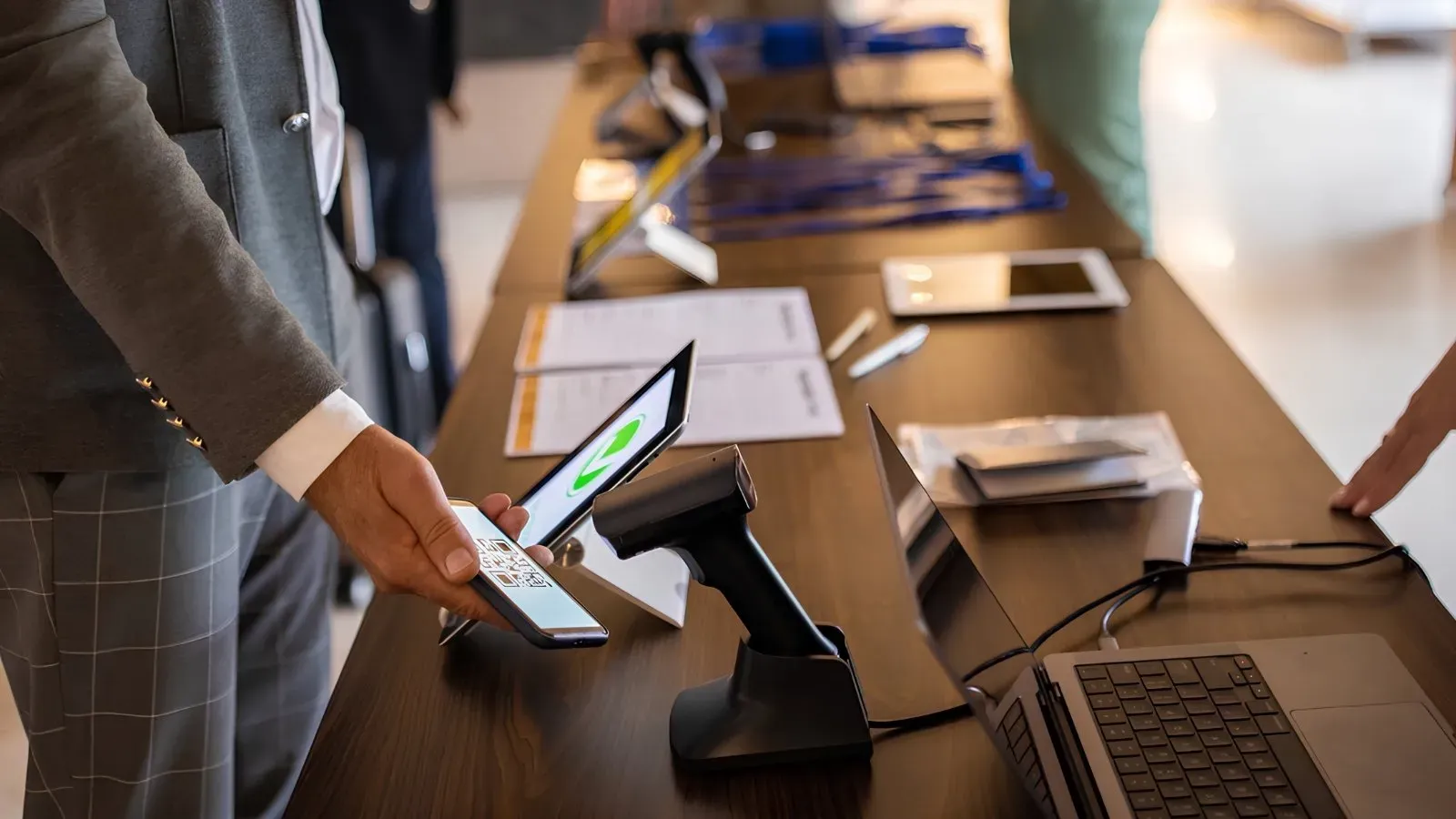
QR codes turn a flyer or poster into an instant sign up. People scan and register on the spot, no typing required. Great for school hallways, church bulletin boards, or event check-in tables.
QR codes turn a flyer or poster into an instant sign up. People scan and register on the spot, no typing required. Great for school hallways, church bulletin boards, or event check-in tables.
Long URLs can look cluttered and get cut off in text messages or printed materials. Platinum and Enterprise subscribers can customize their link, generate a shortened one, or both.
signupgenius.com/go/, checking availability as you typesugeni.us domain and click Copy Link.A portal page acts as a home base for your sign ups. You control which sign ups appear, can add sections for important files or an email opt-in form, and even customize the URL. Ideal for organizations running multiple sign ups at once.
See What Your Plan Includes
Upgraded plans add QR codes, custom links, portal pages, and more.
Compare plansThe channel matters less than how you use it. A few small choices can make a big difference in how many people respond.
Explain the why. People are more likely to sign up when they understand what their participation actually does. Briefly mention who or what the sign up supports, how their help makes a difference, and any deadlines or goals. A single sentence of context can be the nudge someone needs to click.
Share more than once. Most people don't ignore sign ups. They miss them. Share when the sign up first goes live, send at least one reminder as the date gets closer, and post again in the final stretch. Friendly follow-ups help. Just keep the tone warm rather than urgent.
Match the channel to your audience. Parents and professionals tend to respond to email. Community groups engage on Facebook. Smaller teams or younger participants respond quickly to texts or direct messages. Using two channels instead of one meaningfully increases reach without much extra effort.
Thank people early. You don't have to wait until after the event. A quick thank-you in your initial email, acknowledging that someone is considering helping out, builds goodwill and makes people more likely to return. It also sets a tone that participation is appreciated, not just expected.
How do I find the shareable link for my sign up?
After creating your sign up, go to the Share tab. Your unique link is listed there and ready to copy. You can paste it anywhere, including email, social media, text messages, or your organization's website.
Do I need an account to share a sign up?
You need a SignUpGenius account to create and share a sign up. First-time users must also verify their email address before publishing and sharing. Participants who receive the link can view and fill slots without creating an account.
Can I send reminders to people who haven't signed up yet?
Yes. Go to the Messages area of your account after your sign up is live. From there you can send follow-up emails and, on eligible plans, text reminders to people who haven't responded yet.
What is the difference between the sign up link and a short link?
Your sign up link is the unique URL generated when you create your sign up. A short link is a condensed version available on upgraded plans. Short links are easier to share in text messages, printed materials, and social posts where long URLs get cut off.
How do I set up a custom or short link for my sign up?
Platinum and Enterprise subscribers can find this option on the Publish tab before publishing, or the Share tab afterward. Check the box for Customize or shorten link, then either enter your own keyword or generate a short link using the sugeni.us domain.
Can I embed a sign up directly on my organization's website?
Enterprise plan customers can embed sign ups using an iFrame, creating a seamless registration experience without redirecting participants to a separate page. For other plans, the Share on Website button generates an HTML snippet that links visitors to your sign up.
Can I share one sign up in multiple places?
Yes, and it's a good idea. Using email, social media, and a website link together increases the chance that everyone in your group sees it. All traffic goes to the same sign up, so slot coverage updates in real time regardless of where someone clicks through.
SignUpGenius is wonderful. You have no idea how easy you have made my life. Seriously! Thank you, thank you, thank you.
Tracy Zoblisein